
How to Schedule Instagram Posts, Reels and Stories

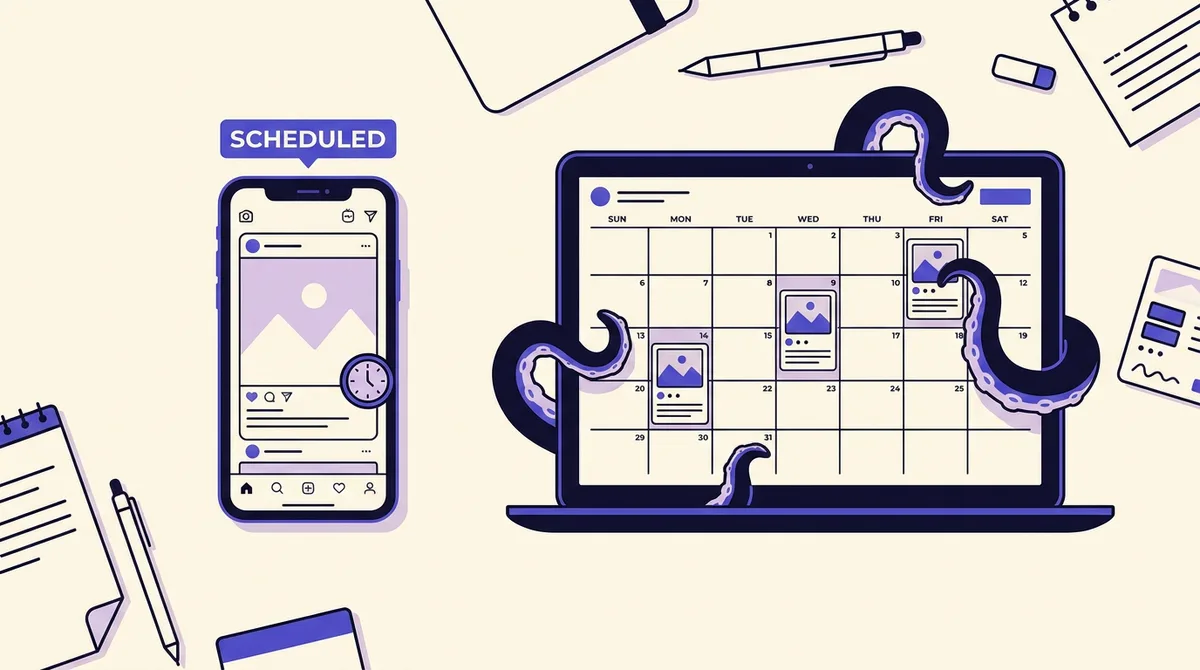
Almost every guide to scheduling Instagram posts describes the same three taps: open the composer, find Advanced settings, toggle the schedule switch. That takes eleven seconds to learn. What people actually need is the part that comes after, when a Reel queued for Tuesday morning arrives instead as a push notification telling you to go post it by hand, or when a scheduler that says "connected" publishes nothing at all.
Those failures are not random. Every one of them is documented in public, in Meta's own developer specs: the file formats that qualify for automatic publishing, the rate limit that governs how many posts an account can push in a day, the account state that blocks publishing entirely. Almost none of it appears in the guides that rank for this query, because they were written by looking at the app rather than at the specification the app is built on.
This guide runs chronologically, from the first eligibility check through to a repeatable weekly batching session. Work through it once in order and you end up with a queue that publishes on its own, plus a short checklist you can apply to every future upload to know in advance whether it will.
Milestone 1: Confirm the account is allowed to publish on a schedule
Three account-level conditions. Skipping them is the most common reason a schedule looks fine and produces nothing.
You need a professional account. Scheduling in the Instagram app and in Meta Business Suite requires a Business or Creator account, and so does programmatic publishing through any third-party tool. Personal accounts get no scheduling surface at all. Switch in Settings, under Account type and tools. Free and reversible.
Check for Page Publishing Authorization. If your Instagram professional account is connected to a Facebook Page that requires Page Publishing Authorization, Meta states plainly that you cannot publish to that account until PPA has been completed (Meta, Content Publishing). The symptom is misleading: your scheduler authenticates, shows a green connected badge, accepts scheduled posts, and then every publish attempt fails. If you have connected a tool and nothing has ever gone out, check the Page's authorization status before blaming the tool.
Know which ceiling applies. There are two numbers and most guides conflate them.
- Inside the Instagram app and Meta Business Suite, the widely reported limits are 25 scheduled posts per day and a window up to 75 days ahead. These come from Meta's Business Help Centre and change without announcement, so confirm the current values in your own composer.
- Through the API, which is what every third-party scheduler uses, accounts are limited to 100 API-published posts within a rolling 24 hour period, and a carousel counts as a single post regardless of how many slides it holds.
The second limit carries a detail nobody quotes. Meta puts enforcement on the scheduling app, advising developers to "enforce the publishing rate limit, especially if your app allows app users to schedule posts to be published in the future," and notes the platform provides no scheduling feature of its own through the API. Scheduling is entirely a third-party invention layered on an immediate-publish endpoint, and the quota is the tool's responsibility. That matters the day you bulk import 140 posts from a spreadsheet: a tool that counts will pace them, a tool that does not will hit the wall around post 100 and hand you a block of failures with no obvious cause.
Milestone 2: Pick a route using a rule, not a preference
Three routes exist, and each is genuinely better than the others for a specific situation.
Route 1: schedule inside the Instagram app
Identical on iPhone and Android. Tap the plus icon, select your photo or video, edit and crop, tap Next to the caption screen. Open Advanced settings (More options on some builds), toggle Schedule this post, set date and time, then tap Schedule where Share used to be. Queued items live under your profile menu in Scheduled content, where you can edit the caption, change the time, publish now, or delete.
Free, and the only route with full native access to Instagram's editing and audio tools, so Reels keep trending audio. But: one account at a time, no cross-posting from the native composer, no team review, phone only.
Route 2: Meta Business Suite on desktop
Go to business.facebook.com, open Planner or Create post, select the Instagram account (and the Facebook Page if you want both), upload media, write the caption, choose Schedule instead of Publish. Planner shows scheduled, published and draft items on one calendar.
Free, desktop-based, and handles Instagram and Facebook in one composer. But the interface is slow, reorganizes itself frequently, has no real approval workflow, and covers only Meta properties.
Route 3: a third-party scheduler
Connect the professional account once, then compose, queue and monitor from a calendar. The only route that puts Instagram alongside TikTok, LinkedIn, X, YouTube and Threads in one queue, and the only one with approvals, per-client permissions and analytics that survive past Instagram's own retention. The trade-off is the API constraint set below, plus a subscription.
The rule
Choose by the constraint that actually binds you:
- One account, phone-first, heavy use of Instagram audio and effects: native app. Nothing beats it on creative feature access.
- One or two accounts, you also run a Facebook Page, budget is zero: Meta Business Suite.
- More than one platform, more than one person touching the calendar, or a client who approves before anything ships: a third-party tool. The moment your Instagram calendar has to line up with anything else you publish, native scheduling stops scaling. Our guide to scheduling across every major platform covers how this decision plays out on the other networks.
One note on the complaint that fills social media forums: most tools schedule Feed posts well and treat Stories as an afterthought, forcing you to run two systems. Stories can be published programmatically by creating a media container with the media type set to STORIES, exactly as Reels use REELS and multi-item posts use CAROUSEL. A tool that cannot schedule Stories has chosen not to, not been prevented. Check for it explicitly.
Milestone 3: Decide, before uploading, whether it will publish itself
This is the step that decides whether your schedule is real. Third-party tools have two publishing modes and will silently switch between them.
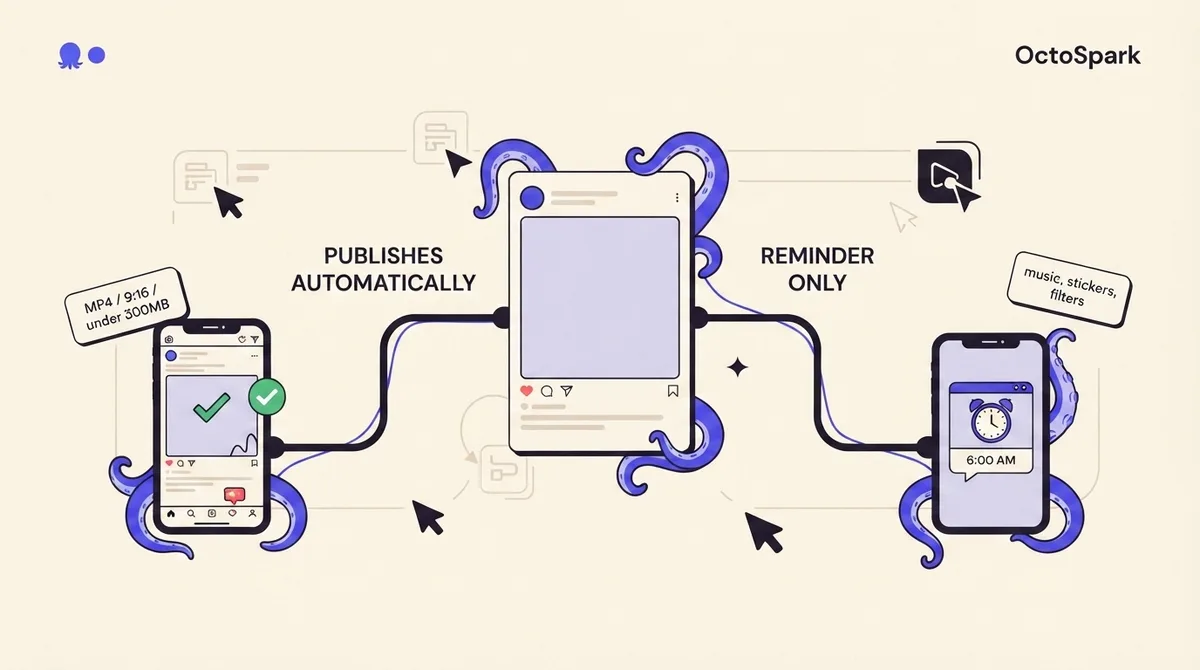
Auto-publish sends the post at the scheduled minute with nobody present. Reminder publishing (or notification publishing) sends a push notification to your phone at the scheduled minute, and you finish the post by hand. Both are labeled "scheduled" in most calendars. Only one works while you are asleep.
The rule, derived from Meta's published constraints rather than asserted:
- Single image, JPEG, within the size and ratio limits: auto-publishes.
- Reel, MP4 or MOV, within duration, size and frame rate limits, with no Instagram-native music or stickers added afterward: auto-publishes.
- Carousel of up to 10 images, videos or a mix, each item within the per-item limits: auto-publishes as one post.
- Story within the limits: auto-publishes where the tool supports it, and expires after 24 hours as normal.
- Anything with Instagram's music library, stickers, link stickers, polls, or a collaborator tag: reminder only. These are composed inside the app and have no publishing equivalent, so no tool can reproduce them.
- Anything using an Instagram filter: not schedulable with the filter applied. Meta documents that filters are not supported for programmatic publishing. Bake the look into the file in your editor first.
- Any file outside the specs below: reminder at best, hard failure at worst.
That last bullet is where "unsupported sizes or lengths," the phrase competitors use without defining, actually lives. So define it.
Milestone 4: Match the file to the spec once, and stop guessing
Keep these open while you export. They are the current published values (Meta, IG User Media reference), and several widely shared numbers online are years stale. If a guide still says Reels run 5 to 90 seconds, it is quoting a limit Meta has replaced.
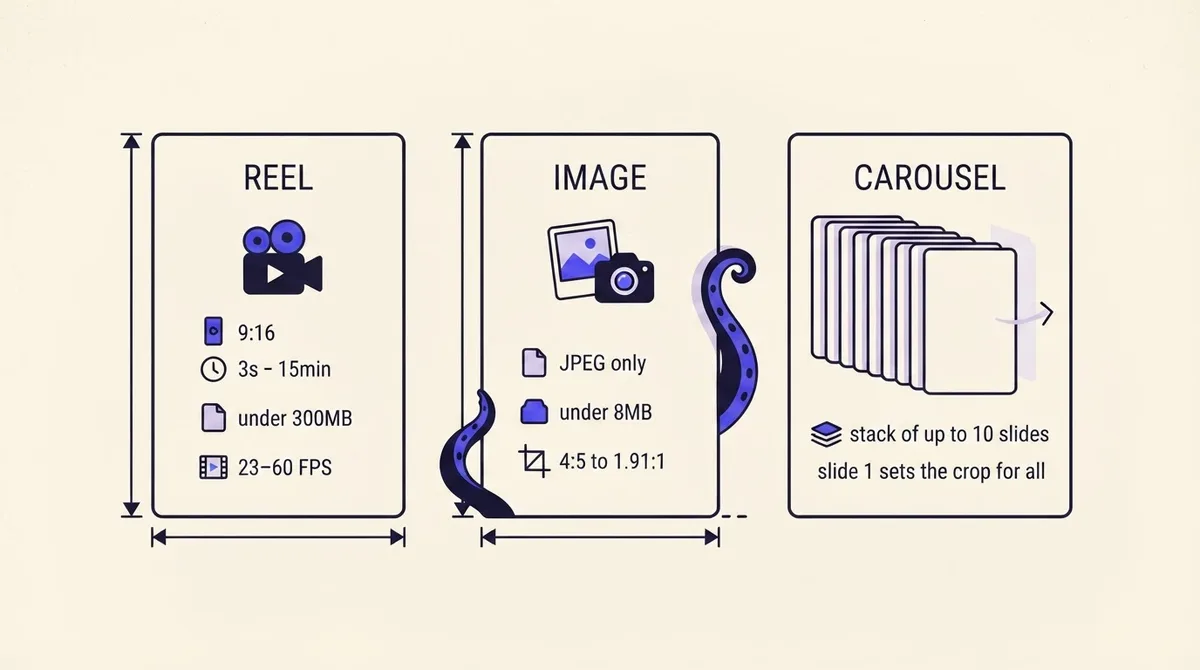
Reels. MOV or MP4 (MPEG-4 Part 14) with no edit lists and the moov atom at the front of the file. Video HEVC or H264, progressive scan, closed GOP, 4:2:0 chroma subsampling. Audio AAC, 48khz maximum sample rate, mono or stereo. Duration 3 seconds to 15 minutes. Maximum 300MB. Frame rate 23 to 60 FPS. Maximum 1920 horizontal pixels. Aspect ratio from 0.01:1 to 10:1, but Meta recommends 9:16 to avoid cropping or blank bars, which means exporting at 1080 x 1920.
Images. JPEG only; extended variants such as MPO and JPS are not supported. Maximum 8MB. Aspect ratio between 4:5 and 1.91:1, so 1080 x 1350 for portrait and 1080 x 566 at the widest.
Carousels. Up to 10 images, videos or a mix, each obeying the per-item rules. The detail that catches people: every image in a carousel is cropped to match the first image, defaulting to 1:1. Slide one silently decides the crop for all of them. If slide one is square and slides two through eight are 4:5 portraits, the portraits lose their top and bottom. Export every slide at the same ratio, and decide that ratio when you pick the opening slide.
Stories. A Story container accepts either a video URL or a Reels URL, not both.
Three translations. A 4K vertical clip off an iPhone is 2160 pixels wide, over the 1920 cap, so downscale to 1080 x 1920. A PNG from Canva or Figma will not publish, so export JPEG. A clip exported at 120 FPS for slow motion is outside the 23 to 60 FPS range, so render the slow motion into the file at 30 FPS.
Milestone 5: Know what you can never schedule, and how to recover a failure
Some things cannot be queued at all. Meta documents that shopping tags are not supported and filters are not supported for programmatic publishing. In the native app the usual exclusions are product tagging, collaborative posts, branded or sponsored posts, and fundraisers. Plan those into a manual slot rather than discovering it at 8 p.m.
When a scheduled post fails, work down this list in order:
- Check for a reminder, not a failure. Was the item auto-publish or reminder to begin with? Half of all "it didn't post" reports are a notification nobody tapped.
- Check PPA and the token. Tokens expire, and reauthorizing takes a minute. If the account switched between Business and Creator, or the linked Page changed, reconnect it.
- Check the file against Milestone 4. A PNG, a 400MB export or a 2 second Reel fails consistently, in a way that looks like a tool bug.
- Check the daily count. After a bulk import you may have hit the 100-post rolling window.
- Reschedule rather than retry blindly. Fix the file, then set a fresh time a few minutes ahead so the queue has room to process it.
To edit before publication: in the app, open Scheduled content from the profile menu and tap the post; in Meta Business Suite, open the item in Planner; in a third-party tool, edit the queue entry. Once a post is live the schedule is irrelevant, and while you can edit the caption, the media itself cannot be swapped.
Milestone 6: Set the time zone before you set the time
Every scheduler stores times in a configured time zone, and it is not always yours. Do this once: open your tool's settings, confirm the account time zone, and confirm whether the calendar renders in that zone or in your browser's. An agency in London scheduling for a client in Denver has a seven hour gap and two different daylight saving transition dates, so a queue set in March can drift by an hour for weeks. Schedule in the audience's local time and label the calendar accordingly.
As for when: Later's analysis of over 6 million Instagram posts spanning images, videos, carousels and Reels, measured across time zones from January to October 2024, found the best overall posting time to be 5 AM in the audience's local time zone, with Monday the strongest day and highest average engagement between 12 AM and 6 AM; across the 975,000 Reels in that set, the best time was 12 AM (Later). Treat that as a starting hypothesis, then test against your own account. Our Instagram peak posting times breakdown goes deeper on reading your own numbers.
Now the anxiety underneath all of this: does scheduling hurt reach? Instagram's ranking explainer lists Feed signals in rough order of importance as your activity (posts you have liked, shared, saved or commented on), information about the post including how many people liked it, how quickly people are liking, commenting, sharing and saving it, and when it was posted, information about the person who posted it, and your history of interacting with them. For Reels the leading signals are your recent Reel activity, your history with the poster, information about the Reel such as audio track, visuals and popularity, and the poster's follower count or engagement level (Instagram, Ranking Explained). No scheduled-post penalty appears in either list. Posting time is one signal among thousands, and how the post was submitted is not a signal at all.
The real risk is behavioral, not algorithmic: a queued post nobody is around to respond to earns fewer early comments, and early engagement velocity is explicitly on that list. Schedule the post, but be present for the first thirty minutes.
Milestone 7: Run one weekly batching session
The loop that keeps a queue full without eating the week. Budget roughly two hours.
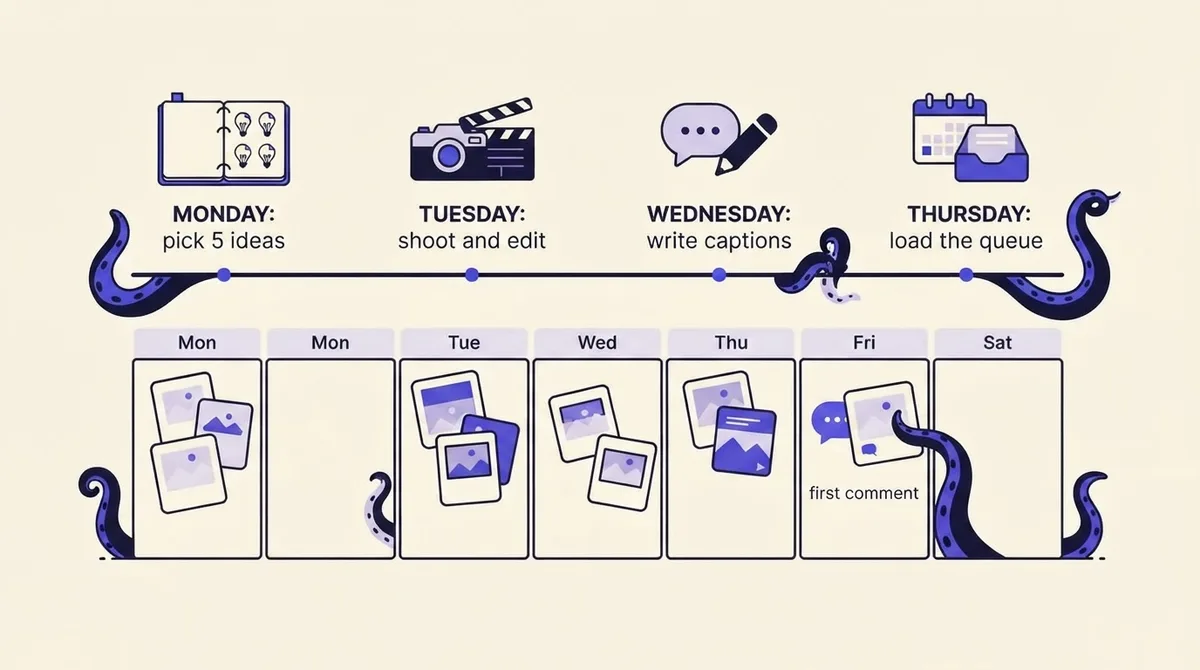
Monday, 20 minutes: pick five ideas. Pull from questions customers actually asked, comments on last week's posts, and anything you saved. Assign a format to each before writing, because format decides the shoot.
Tuesday, 45 minutes: shoot and export everything at once. Same lighting, same setup. Export to spec immediately: Reels at 1080 x 1920 MP4, H264, 30 FPS; stills as JPEG at 1080 x 1350. Exporting correctly here is what prevents reminder-mode surprises later.
Wednesday, 30 minutes: write all five captions in one sitting. Open with the payoff, not a warm-up sentence. If you need a starting point, a caption generator beats a blank cursor, but rewrite the output in your own voice before it reaches the queue.
Wednesday, 10 minutes: hashtags into the first comment. The old 20 to 30 hashtag habit is out of date; a focused set of three to five specific tags is the current norm. Putting them in a scheduled first comment keeps the caption clean while the tags still attach at publish time. This is the feature most schedulers quietly lack, so verify yours has it.
Thursday, 15 minutes: load the queue and audit it. Fill your slots, then run a final pass: is every item auto-publish rather than reminder, is the time zone right, does anything need a manual slot for product tags or a collaborator, are you under the daily cap. Keeping this audit alongside a written content calendar makes it minutes rather than a rebuild.
This is where OctoSpark fits: direct Reel and carousel publishing with no phone alarm, scheduled first comments as a first-class field, Stories in the same calendar as Feed posts, and rate limit pacing handled for you on bulk imports. Drive it from a dashboard, a terminal, or an AI agent over API and MCP, alongside TikTok, LinkedIn, X, YouTube, Facebook and Threads.
Frequently asked questions about scheduling Instagram posts
Why can't I schedule posts on Instagram anymore? Almost always one of three things. Your account is Personal rather than Business or Creator, so the toggle is not shown. You are on the wrong screen, since the toggle lives under Advanced settings or More options on the final caption screen, not in the main share sheet. Or your app version is out of date, which moves or removes the option. If a third-party tool accepted the schedule but nothing published, run Milestone 5's checklist, starting with Page Publishing Authorization.
Where has Schedule Post gone in the Instagram app? On the last step of the composer, the caption screen, behind Advanced settings (More options in some builds). Not in Settings, not in the Professional dashboard.
Can I schedule Instagram posts for free? Yes. The native app and Meta Business Suite are both free and between them cover single accounts and Instagram plus Facebook. You pay for a tool when you need multiple platforms, approvals, or analytics that outlive Instagram's own retention.
Can I schedule Stories? Programmatically, yes: Stories are a supported container type. Whether you can depends on your tool, since native Instagram scheduling does not cover them and many third-party tools skip them.
How many posts can I schedule per day? In-app, the commonly cited limit is 25 per day up to 75 days ahead. Through any third-party tool, the binding constraint is 100 API-published posts per rolling 24 hours, with a carousel counting as one.
Does a scheduled post get fewer views? There is no scheduled-post penalty in Instagram's published ranking signals. Being absent for the first half hour does cost you, because early engagement velocity is a documented signal.
Can I schedule to several accounts at once? Not from the native app, which handles one account per composer with no cross-posting. Meta Business Suite covers Instagram plus Facebook, and third-party tools handle the rest.